Notes
The Notes feature provides an area to to write down and view any useful info or reminders. Notes are supported on products and shops.
View Product Note
To view a product note, long-press the product in the Product List, then tap the Note icon  in the header bar.
View Shop Note
To view a shop note, long-press the shop on the All Shops Page, then tap the Note icon in the header bar.
Note Dialog
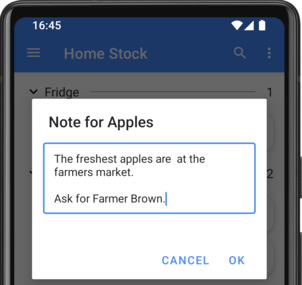
Tapping the Note icon on a product or shop will display the note dialog. On the note dialog, the note can be viewed, edited or deleted.
To add or edit a note, type the note into the text box and tap Ok.
To remove a note, clear the text box and Tap Ok.
Tap Cancel to discard any changes and keep the existing note.
Note Hints
To show a hint when a shopping list item hasa note, enable one of the hint options in Settings. The available options are:
- Button: Show a button on the item that will open the Note Dialog when clicked.

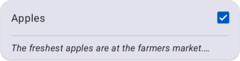
- Summary: Show the first line of the note below the item name, and will open the Note Dialog when clicked.
- Indicator (*): Show an asterisk next to the item name to indicate it has a note.
